

Jodie is an AI receptionist, and Jodie MCP lets Claude, ChatGPT, Gemini or Grok read the calls, chats and emails she answers. Ask in plain words, like which leads called this week. The app searches them and answers with the details. It can only read, so nothing in Jodie changes.
- Works with Claude, ChatGPT, Gemini and Grok
- Read only: it cannot change or send anything
- Sign in with Jodie, with no API key
How does Jodie MCP work?
Jodie answers your calls, chats and emails. Your AI app reads them when you ask. You never copy or paste a call.
- 01
Jodie answers your calls
She answers your phone, website calls, WhatsApp, email and website chat in your business name. Then she writes a summary of each one.
- 02
You ask your AI app
Open Claude, ChatGPT, Gemini or Grok and ask a question in plain words. There are no commands to learn.
- 03
It looks in Jodie
The app uses Jodie MCP to search, list or open your calls, chats and emails. It only ever sees your business.
- 04
You get the answer
It answers with names, numbers and what people said. Each answer can link back to the call in Jodie.
What can your AI app read with Jodie MCP?
Your calls, WhatsApp chats, emails and website chats, from any date. Your AI app finds them first, then opens the ones it needs.
Call
Phone and website calls that Jodie answered or made.
- When it happened, in your time zone
- Phone or website, in or out
- How long it lasted
- Outcome, such as lead or emergency
- Caller name and number
- Summary
- Every answer Jodie collected, under your own questions
- Your team's note
- Full transcript
WhatsApp chat
WhatsApp chats with every message from the customer, Jodie and your team.
- When it started, and the last message
- Status and number of messages
- Outcome
- Contact name and number
- Summary
- Every answer Jodie collected, under your own questions
- Your team's note
- Every message
Email conversations Jodie answered, with every message from both sides.
- When it started, and the last message
- Subject
- Status and number of messages
- Outcome
- Contact name and email address
- Summary
- Every answer Jodie collected, under your own questions
- Your team's note
- The text of every email
Website chat
Chats visitors had with Jodie on your website.
- When it started, and the last message
- Status and number of messages
- Outcome
- The visitor's name, email and phone, if they gave them
- Summary
- Every answer Jodie collected, under your own questions
- Your team's note
- Every message
Search and lists
How your AI app finds the right ones before it opens one.
- Words used, a name, an email address or a phone number
- Only calls, WhatsApp, emails or website chats, or all of them
- Dates and outcome
- Newest first, with a total so it can count
- A link to open it in Jodie
What can you ask through Jodie MCP?
Six real questions, and what your AI app gives you back.
Which leads called this week? Owner
It is Friday, and you want to plan next week before you go home.
Your AI app looks at
- Every call this week marked as a lead
- How many there were
- The summary of each call
You get back
A list of each new lead, with their name, number and what they need. It also tells you how many called.
Sum up last month of emergency calls Manager
You want to know how many urgent jobs came in, and what they were.
Your AI app looks at
- Calls from last month marked as an emergency
- The summary and transcript of each one
- When each call came in
You get back
One short line per call, with the time it came in. The times are in your own time zone.
Find the email or chat about prices Sales
Someone asked about prices by email or in your website chat, and you need to follow up.
Your AI app looks at
- Emails and website chats that mention prices
- Every message, and the subject of an email
- The answers Jodie collected
You get back
The right email or chat, with every message, the summary and the details Jodie collected.
What did Sarah Jones ask for? Office team
Sarah rings back and says she spoke to someone last week.
Your AI app looks at
- Calls, chats and emails with her name
- What she said
- Your team's note
You get back
Her calls, chats and emails, newest first, with what she asked for in each one. You are ready before you pick up.
Has this number called before? Owner
A number you do not know keeps calling, and you want to know who it is.
Your AI app looks at
- Calls and chats from that number
- The number in any format
- The outcome of each one
You get back
Every call and chat from that number, with who it was and what they wanted.
Write a reply to a quote request Owner
A caller asked for a quote yesterday, and you want to reply today.
Your AI app looks at
- Yesterday's call
- The full transcript
- The details Jodie collected
You get back
A draft reply in your AI app, based on what the caller said. Jodie MCP sends nothing. You send it yourself.
How do I set up Jodie MCP?
These are real screens from Jodie. You need Premium, Enterprise or a free trial. Each AI app takes about two minutes.
- 01
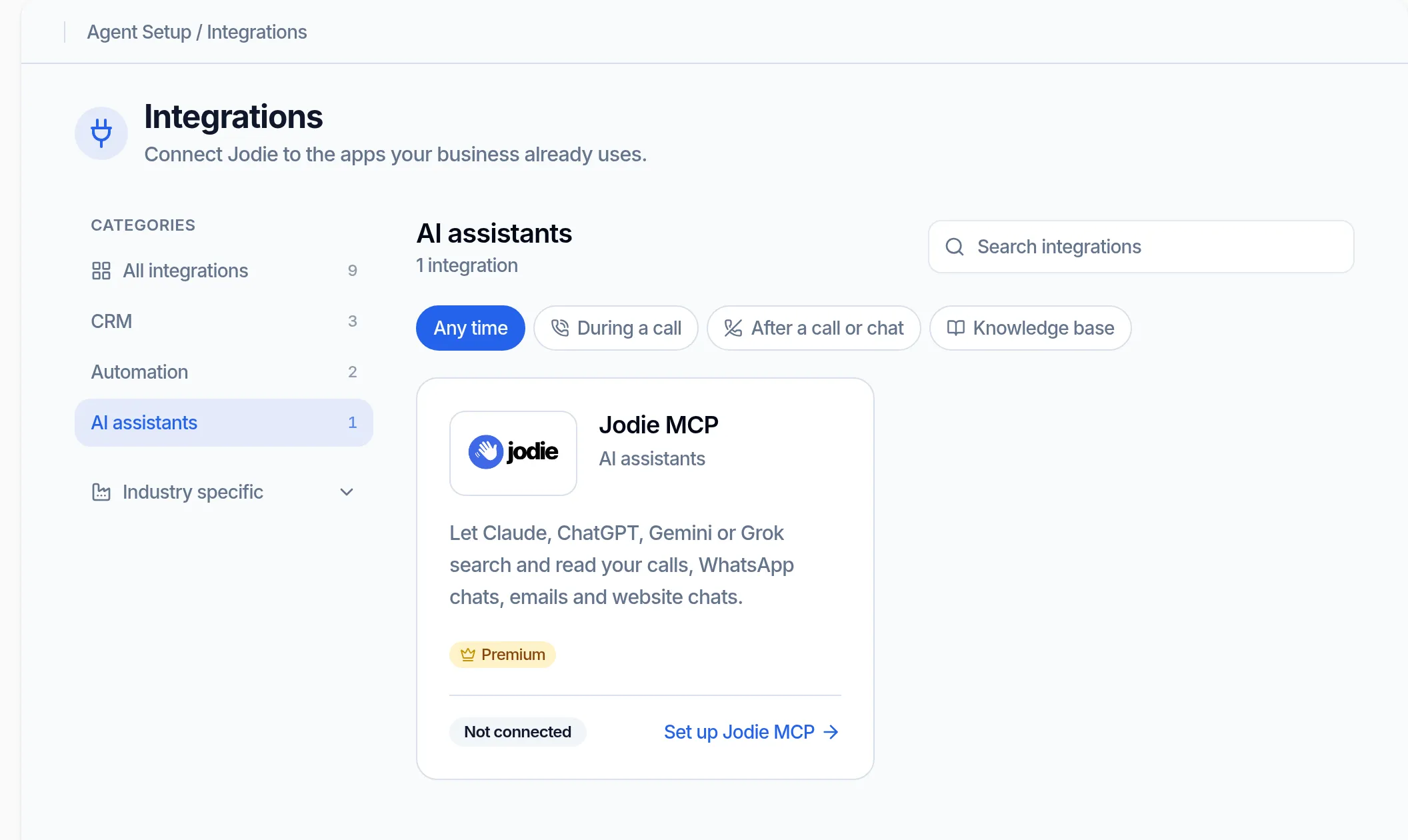
Find Jodie MCP in Integrations
Open Integrations in Jodie. Jodie MCP sits under AI assistants, with a Premium badge.
- 02
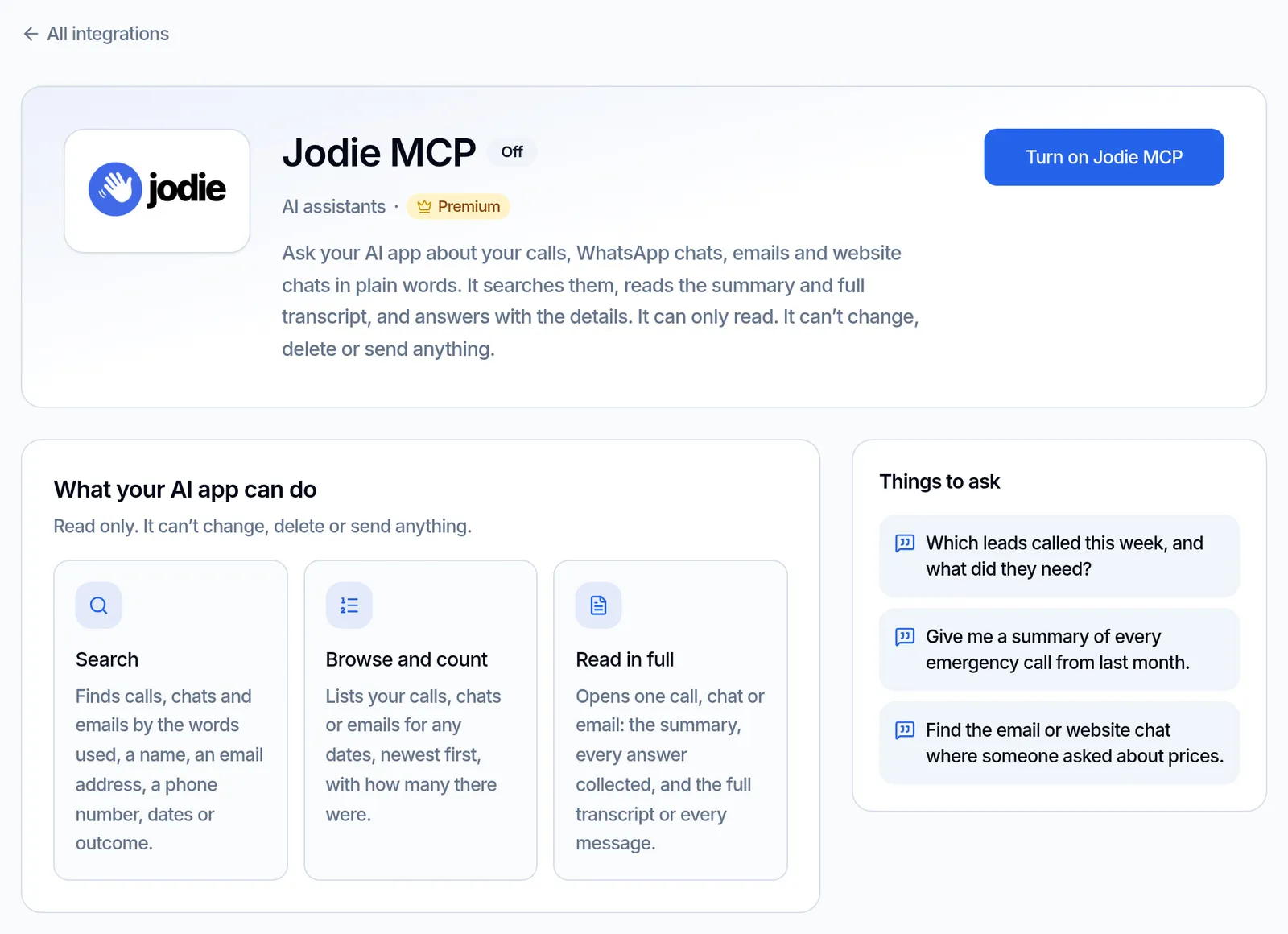
Turn it on
Open Jodie MCP and select "Turn on Jodie MCP". The page shows what your AI app can do and things to ask.
- 03
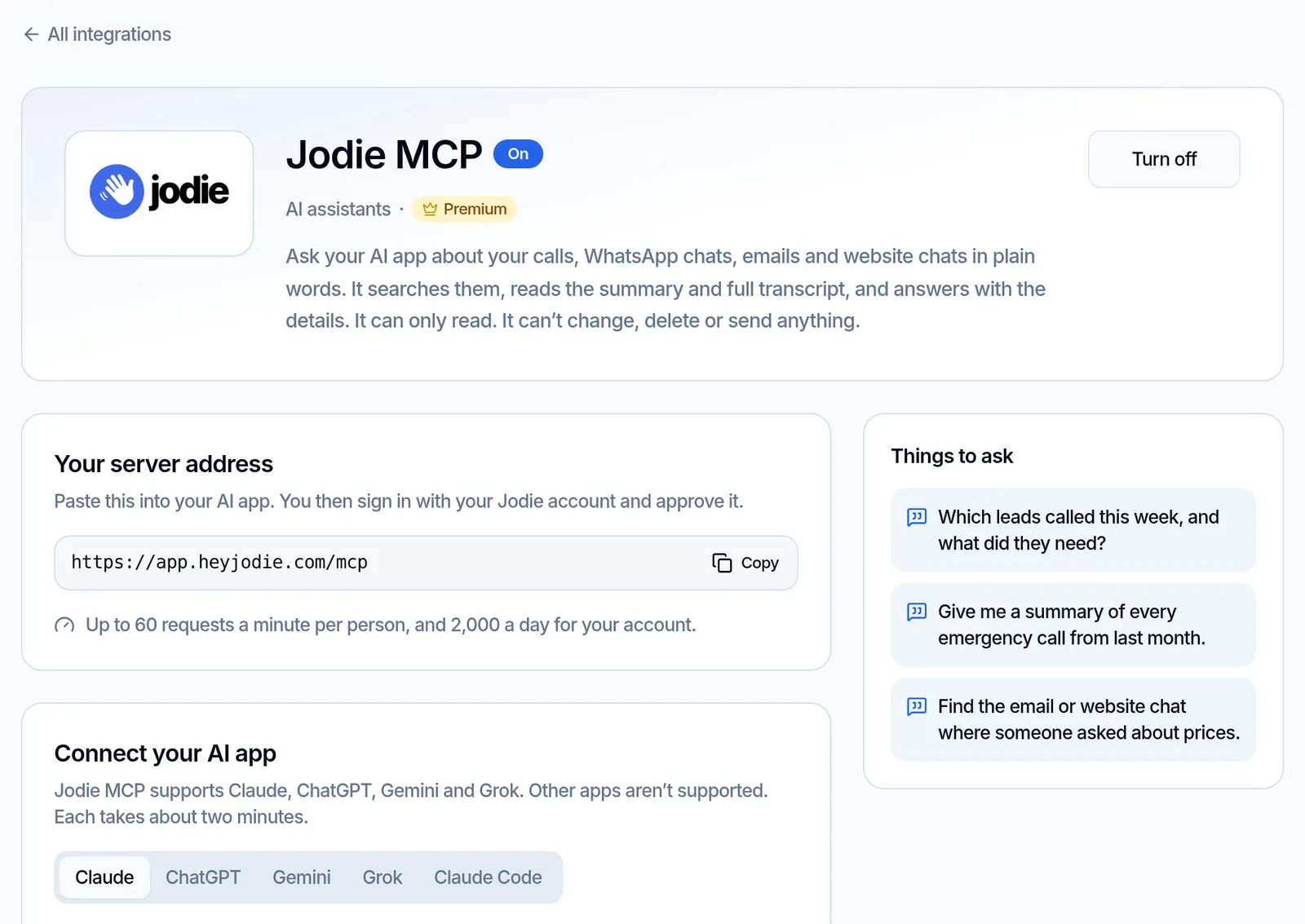
Copy your server address
Once it is on, the page shows your server address with a Copy button. Always copy it from Jodie.
- 04
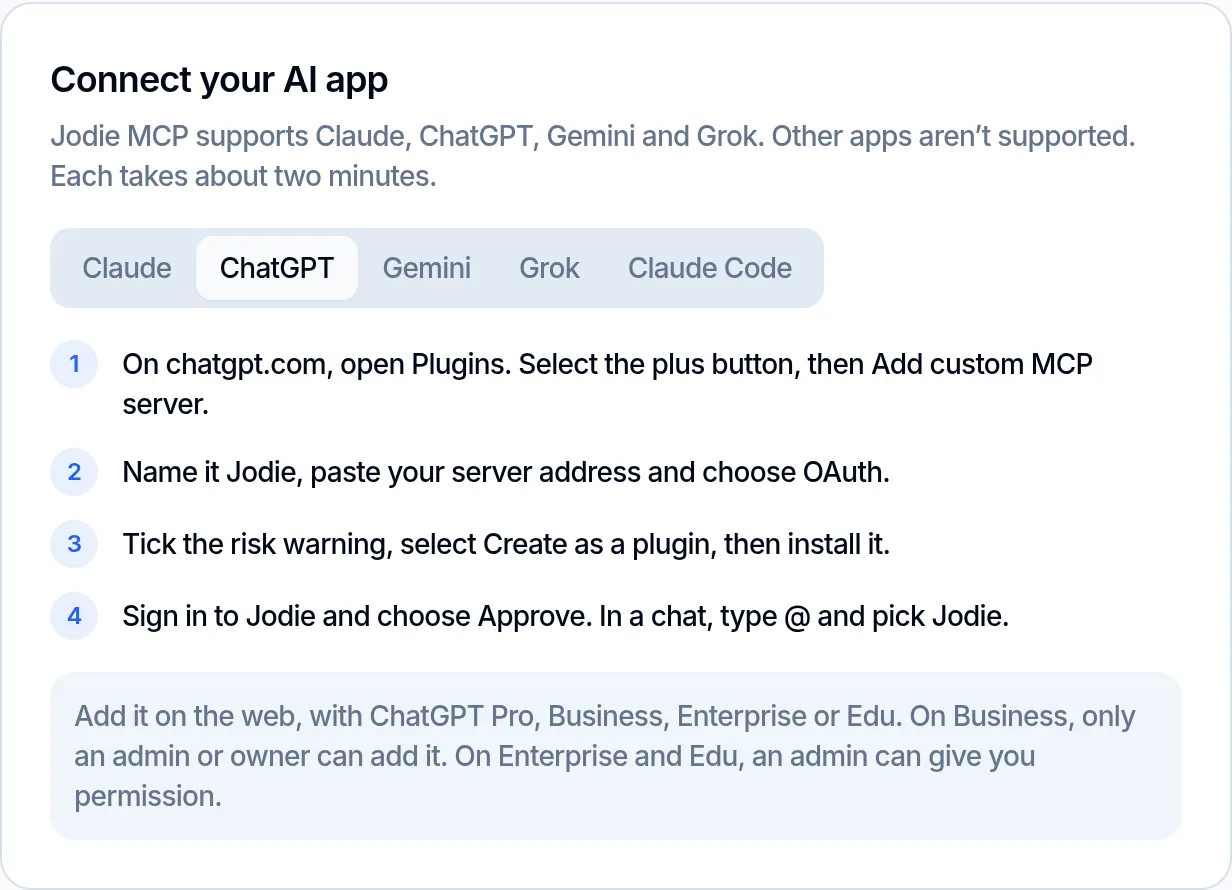
Add it to your AI app
Pick your app and follow the steps. There are guides for Claude, ChatGPT, Gemini, Grok and Claude Code. Other apps aren't supported.
- 05
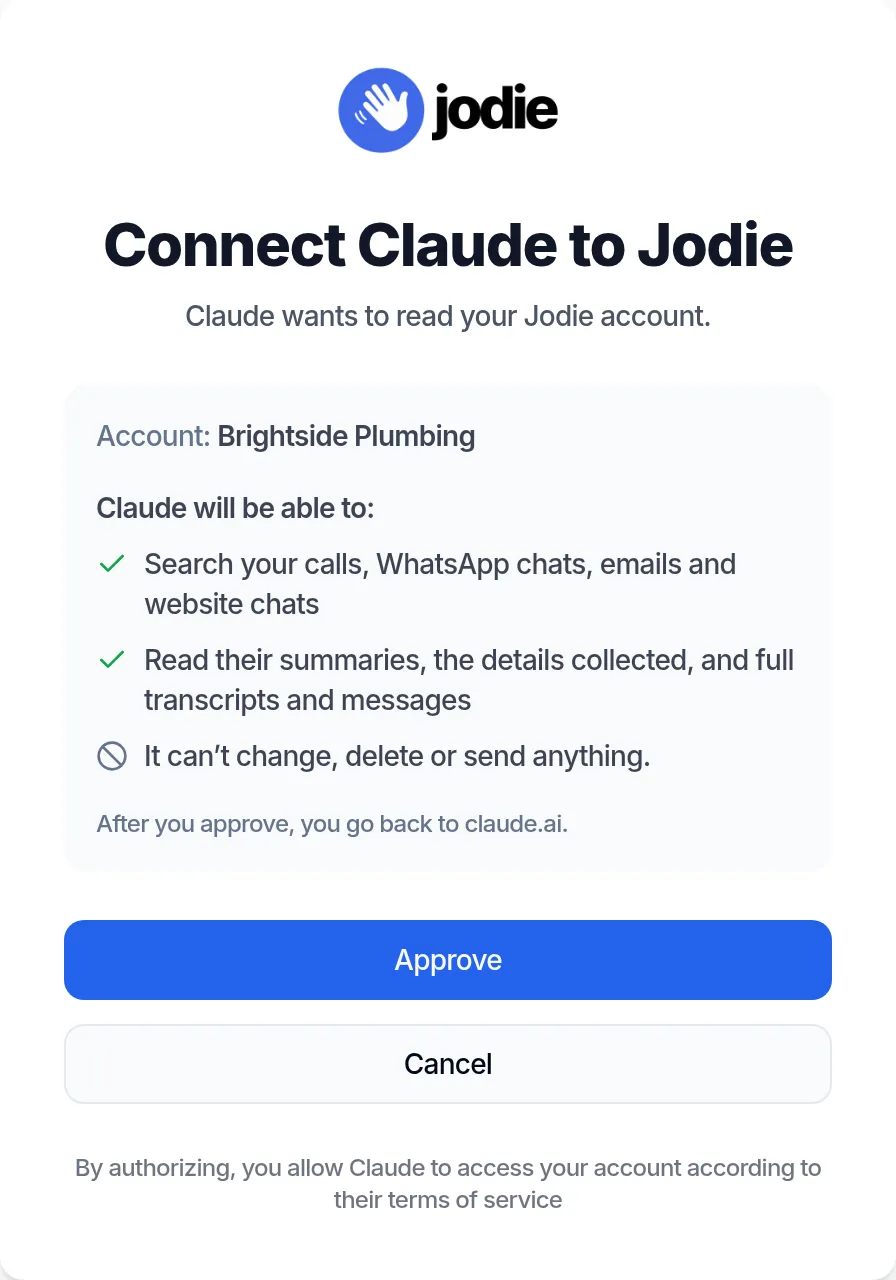
Sign in and approve
Your AI app opens Jodie. Sign in, check the account and what the app can do, then choose Approve.
- 06
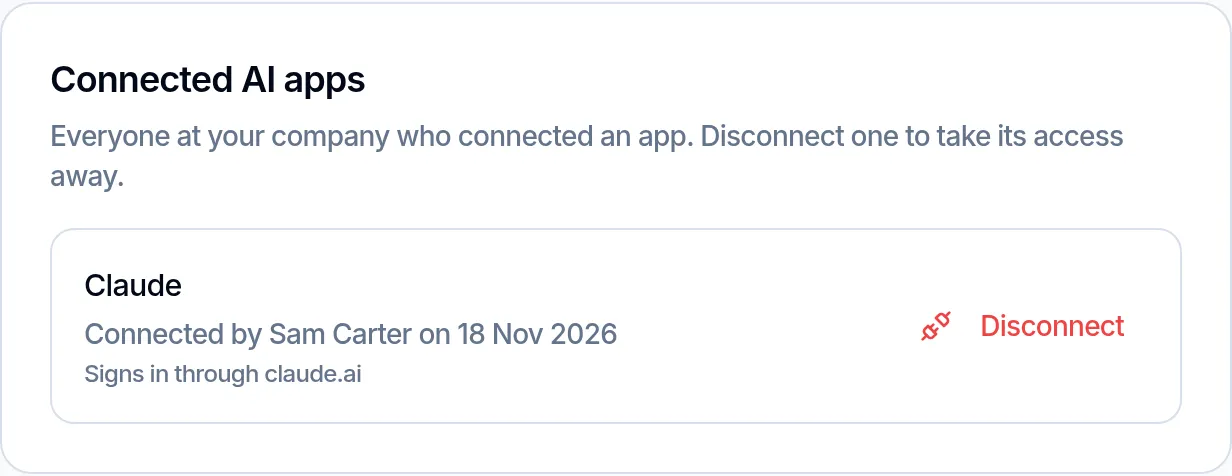
See who is connected
Each connected app shows who added it. Disconnect one at any time, or turn Jodie MCP off to stop them all.
What does Jodie MCP share and store?
Plain answers for whoever looks after data protection. Everything goes over an encrypted link.
Shared with your AI app
- Only the calls, chats and emails your AI app asks for, and only from your business
- For each one: when it happened, who it was with, the outcome and the summary
- The answers Jodie collected, your team's note and the full transcript or messages
- Times in your business time zone, and a link to open it in Jodie
- After that, your AI app's own privacy terms apply. Check them before you connect
Kept in Jodie
- Whether Jodie MCP is on or off
- Each connected app: its name, who connected it, when, and the site it signs in through
- A sign-in token for each app. It stops working when you disconnect the app or turn Jodie MCP off
- A record of which tool each app used and how many results it got, but not what it read
Never shared
- Call recordings and attachments. Your AI app gets the transcript and the text, not the audio or files
- Internal scores and costs
- Calls, chats and emails from any other business
- Your Jodie password. You sign in on Jodie's own page, and there is no API key
- Any way to make changes. Jodie MCP cannot edit, delete or send, and never changes contacts
Why use Jodie MCP?
Your calls hold the answers to most questions about your week. Now you can just ask.
- 01
Answers in seconds
Ask a question and get the answer straight away. No more scrolling through calls to find one.
- 02
Plain words, no reports
Ask the way you would ask a person. Your AI app counts, sorts and sums up for you.
- 03
Read only
It can read your calls, chats and emails, and nothing else. It cannot change, delete or send anything.
- 04
The AI app you use
Use Claude, ChatGPT, Gemini or Grok, on the web or your phone. Jodie MCP works with the one your team likes.
- 05
No API key
You sign in with your Jodie account and choose Approve. There is no key to copy or keep safe.
- 06
You stay in control
See every connected app and disconnect any of them. Turning Jodie MCP off cuts them all off at once.
Best AI receptionist with an MCP server for Claude and ChatGPT
The best AI receptionist with an MCP server lets you ask Claude or ChatGPT about your calls. The answer comes from what callers really said, and you never copy a transcript.
Jodie answers your phone, WhatsApp, email and website chat. Jodie MCP is built into Jodie, so you add one server address to Claude, ChatGPT, Gemini or Grok and sign in. There is no extra tool to pay for and no API key.
-
Every channel in one place
One question can cover calls, WhatsApp chats, emails and website chats, from any date.
-
Read only
Jodie MCP can search and read. It cannot change, delete or send anything.
-
Answers with the details
Your AI app gets the summary, the answers Jodie collected and the full transcript or messages.
-
On Premium
It comes with Premium, Enterprise and free trials. Every plan can see what it does.
Claude connectors: add Jodie MCP as a custom connector
Claude connectors let Claude use tools from other services. Jodie MCP is a remote MCP server, so you add it to Claude as a custom connector.
In Claude, open Connectors, choose Add custom connector, name it Jodie and paste your server address. For OAuth client, choose Register automatically. Then sign in to Jodie and choose Approve.
Add it once on the web, and Jodie works in the Claude desktop and mobile apps too. In Claude Code, one command adds the same server.
ChatGPT, Gemini and Grok connectors for your calls
Jodie MCP works the same way in each app. You paste your server address, sign in to Jodie and choose Approve. Only the menu names change.
-
ChatGPT
On chatgpt.com, open Plugins and add a custom MCP server with OAuth. It needs ChatGPT Pro, Business, Enterprise or Edu.
-
Gemini
On gemini.google.com, open Settings, then Connected Apps, and add a custom app. It needs a personal Google account in the US, set to English.
-
Grok
Go to grok.com/connectors and add a custom connector. On Grok Business and Enterprise, an admin adds it first.
A WhatsApp MCP and email MCP server for your business
Jodie MCP is also a WhatsApp MCP and an email MCP server for the chats and emails Jodie answers. Your AI app can find them by the words used, a name, an email address or a phone number.
It reads every message, the subject of each email and the summary. It cannot send a WhatsApp message or an email, so you always send replies yourself.
Jodie MCP questions
Can Claude or ChatGPT read my AI receptionist's calls with Jodie MCP?
Yes. Jodie is an AI receptionist that answers your phone, WhatsApp, email and website chat. Jodie MCP lets Claude, ChatGPT, Gemini or Grok search and read them. You ask in plain words, and the app answers from your real calls and chats.
What is an MCP server?
MCP stands for Model Context Protocol. It is an open standard that lets AI apps use tools from other services. Jodie MCP is the MCP server built into Jodie. Your AI app signs in to it with your business's Jodie account, so there is no API key. Partner and admin logins cannot connect.
Which AI apps work with Jodie MCP?
Jodie MCP supports Claude, ChatGPT, Gemini and Grok. Claude works on the web, the desktop and mobile apps, and in Claude Code. Each one has a step-by-step guide. Other apps aren't supported.
How do I add Jodie MCP to Claude?
In Claude, open Connectors and add a custom connector. Name it Jodie and paste your server address. For OAuth client, choose Register automatically. It may be under Advanced. Then select Connect, sign in to Jodie and choose Approve. It then works in the Claude apps on your computer and phone too.
How do I add Jodie MCP to ChatGPT?
On chatgpt.com, open Plugins, select the plus button, then Add custom MCP server. Name it Jodie, paste your server address and choose OAuth. Tick the risk warning, create it as a plugin and install it. Then sign in to Jodie and choose Approve. Add it on the web, with ChatGPT Pro, Business, Enterprise or Edu. On Business, only an admin or owner can add it.
How do I add Jodie MCP to Gemini?
On gemini.google.com, open Settings, then Connected Apps. Under Custom apps, choose Add a custom app. Paste your server address, select Next, sign in to Jodie and choose Approve. Custom apps need a personal Google account in the US, set to English.
How do I add Jodie MCP to Grok?
Go to grok.com/connectors, select New Connector, then Custom. Paste your server address, sign in to Jodie and choose Approve. On Grok Business and Enterprise, an admin adds it first in console.x.ai.
Which Jodie plan do I need?
Premium, Enterprise or a free trial. Every plan can open the Jodie MCP page in Jodie to see what it does. Below Premium, turning it on shows you how to upgrade. If a payment is overdue or your plan ends, your AI app stays connected. It tells you what to fix, then works again straight after.
Where do I find my server address?
In Jodie, go to Integrations, then Jodie MCP, and turn it on. The address shows on that page with a Copy button. It should be https://app.heyjodie.com/mcp, but always copy it from Jodie.
Can my AI app change or delete anything?
No. Jodie MCP is read only. It cannot change, delete or send anything, and it never changes your contacts. Your AI app can write a draft for you, but you send it yourself.
How do I disconnect an app?
Open Jodie MCP in Jodie and find Connected AI apps. Select Disconnect next to the app. It loses access straight away, for everyone at your business. To cut off every app at once, turn Jodie MCP off.
Are there any limits?
Yes. Each person can make up to 60 requests a minute, and your business up to 2,000 a day. A search stops after 5 seconds. On a busy account, ask about a date range, like last week.