


Jodie is an AI receptionist that logs every call in Zoho CRM for you. She answers your phone, WhatsApp, email and web chat. When each one ends, she adds it to the right contact or lead, with a short summary and the transcript. It is built in, with no Zapier.
- Finds the caller in Zoho CRM, or adds them
- Logs calls and chats with the transcript
- Sets up in about 3 minutes
How does Jodie work with Zoho CRM?
Jodie handles the call, then sends it straight to Zoho CRM. Nobody types a thing.
- 01
A call or chat comes in
Jodie answers in your business name, day or night. She works on the phone, WhatsApp, email and your website chat.
- 02
Jodie writes it up
When it ends, she writes a short summary. She also notes the key details: name, number and what they need.
- 03
Jodie sends it to Zoho
She sends it straight to your Zoho CRM account. If Zoho is busy, she tries again later.
- 04
It lands on the right person
You see the call or chat on the caller's contact or lead, with a note your team can read at a glance.
What shows up in Zoho CRM?
Each call or chat adds up to three things to the right person: the person, the activity and a note.
Lead
Only for new callers. You choose lead or contact when you set it up.
- First name
- Last name
- Phone
Call
For phone calls, on the matching contact or lead.
- Subject
- Call type: Inbound, Outbound or Missed
- Start time
- Duration
- Summary, details and transcript
Task
For WhatsApp, email and web chats, marked Completed.
- Subject
- Status: Completed
- Due date
- Every message
Note
On the same record, so your team sees what happened at a glance.
- Summary
- Label
- Details Jodie collected
- Link to the call in Jodie
What happens on different calls?
Six common cases, and what you find in Zoho CRM after each one.
A new caller rings New customer
Someone finds you online at 9pm and calls to ask for a price.
Jodie asks for
- Name, phone and email
- What they need
- How soon they need it
- A one-line summary
In Zoho CRM
A new lead (or contact, if you prefer) with their details. The call is logged on it with the transcript, plus a note with the summary.
A customer calls back Existing customer
A customer already in Zoho CRM calls to move an appointment.
Jodie asks for
- Who they are, matched by phone or email
- What they want changed
- Anything they asked you to do
In Zoho CRM
The call is logged on their record, next to everything else you have on them. Nothing on the record is changed.
A caller hangs up early Missed caller
Someone rings, then drops off before saying much.
Jodie asks for
- Their number
- When they called
- Anything they said
In Zoho CRM
A call logged as Missed on their record, so your team can ring them back.
A WhatsApp chat ends WhatsApp contact
A customer messages on WhatsApp to check opening times and book in.
Jodie asks for
- Their WhatsApp number
- Every message, in order
- A summary of the chat
In Zoho CRM
A completed task on their record with the whole chat. A note with the summary sits next to it.
An email thread wraps up Email contact
A customer emails a question and Jodie replies until it is sorted.
Jodie asks for
- Their email address
- Each message and subject line
- A summary
In Zoho CRM
A completed task on the person found by email, with every message. A note with the summary sits next to it.
A website chat finishes Website visitor
A visitor uses the chat on your site and leaves their details.
Jodie asks for
- Name, phone and email
- The full chat
- A summary
In Zoho CRM
A completed task on the visitor's lead or contact, with the chat and their details. No web lead gets lost.
How do I set it up?
These are real screens from Jodie. Setup shows you where to click in Zoho and takes about 3 minutes. You need to be a Zoho CRM admin.
- 01
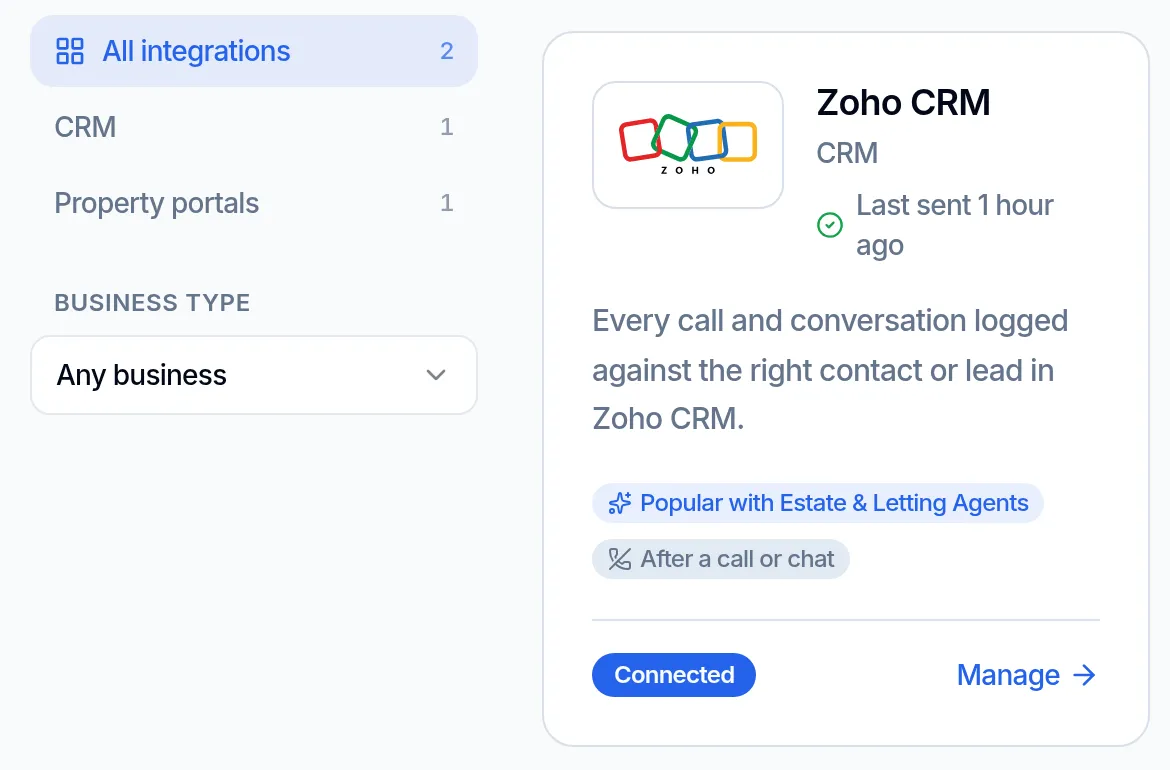
Find Zoho CRM in Integrations
Open Integrations in Jodie. Apps that suit your type of business are shown first, and connected ones show how they are doing.
- 02
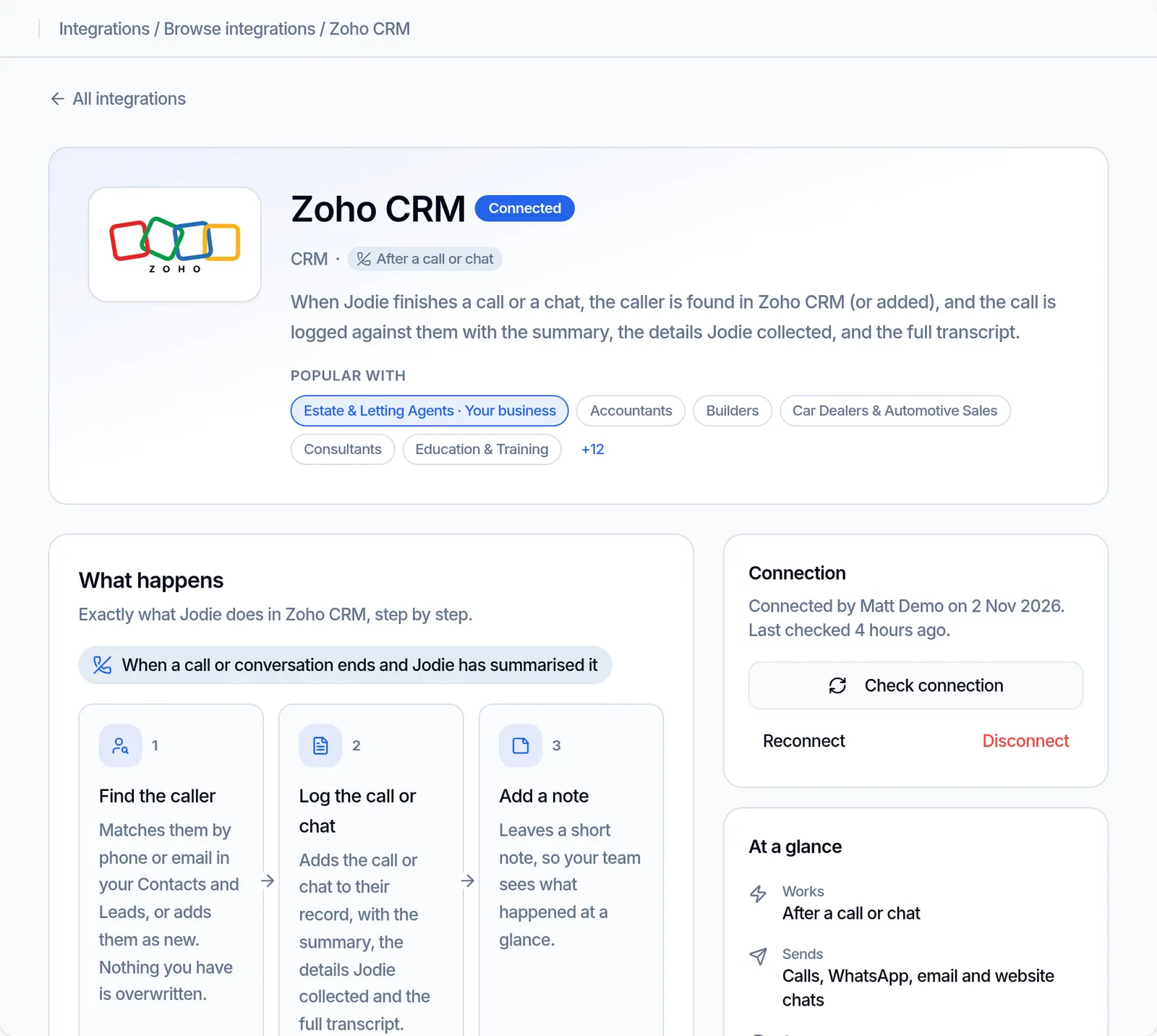
See what it does
Each integration has its own page. It shows what happens after each call and how it looks in Zoho CRM.
- 03
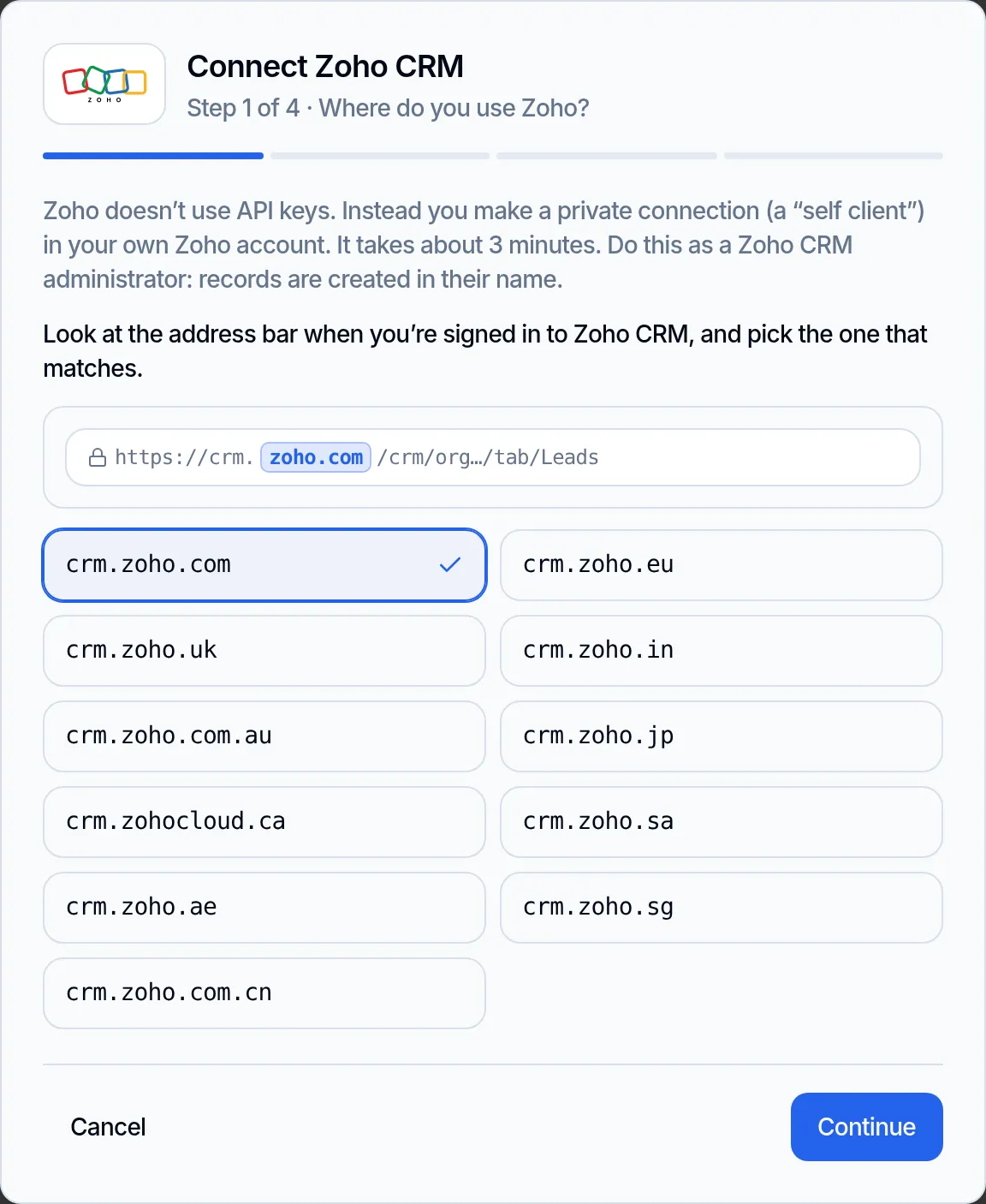
Pick your Zoho region
Look at the address bar when you are signed in to Zoho CRM, and pick the one that matches. The picture shows where to look.
- 04
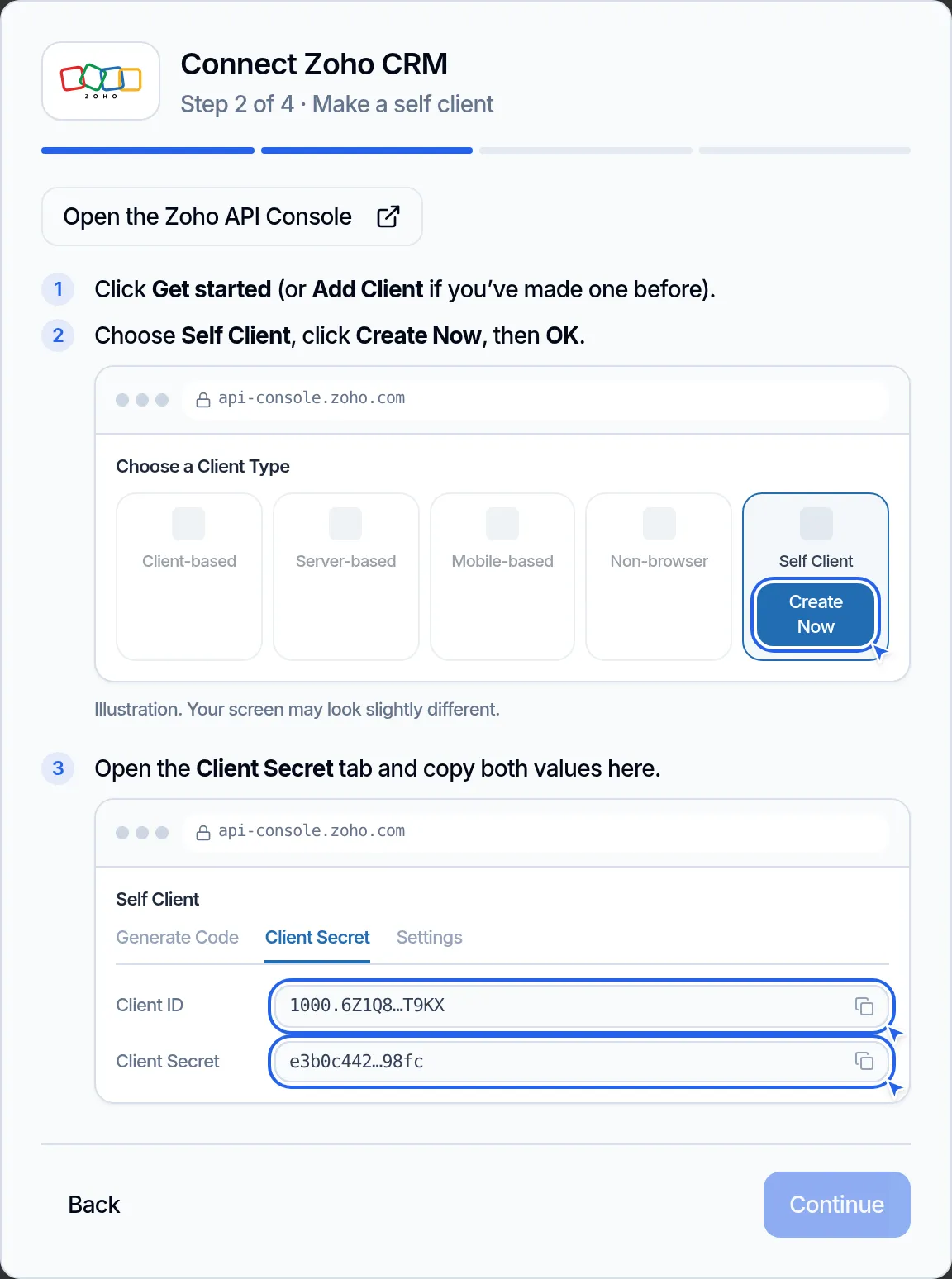
Make a self client
Open the Zoho API Console from the button and create a Self Client. Copy its Client ID and Client Secret into Jodie.
- 05
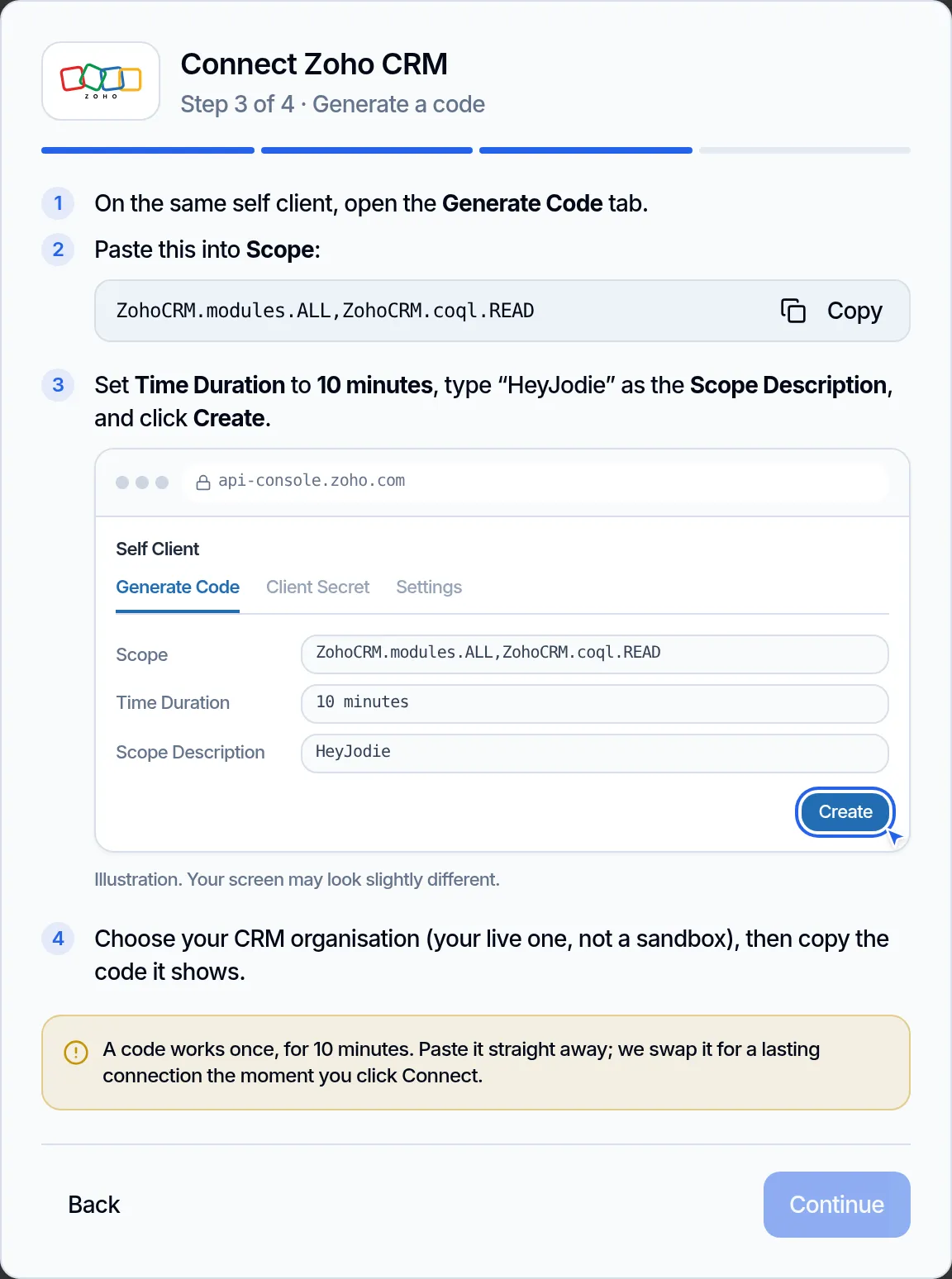
Make a one-time code
Paste the scope Jodie gives you and set 10 minutes. Then paste the code Zoho shows you back into Jodie.
- 06
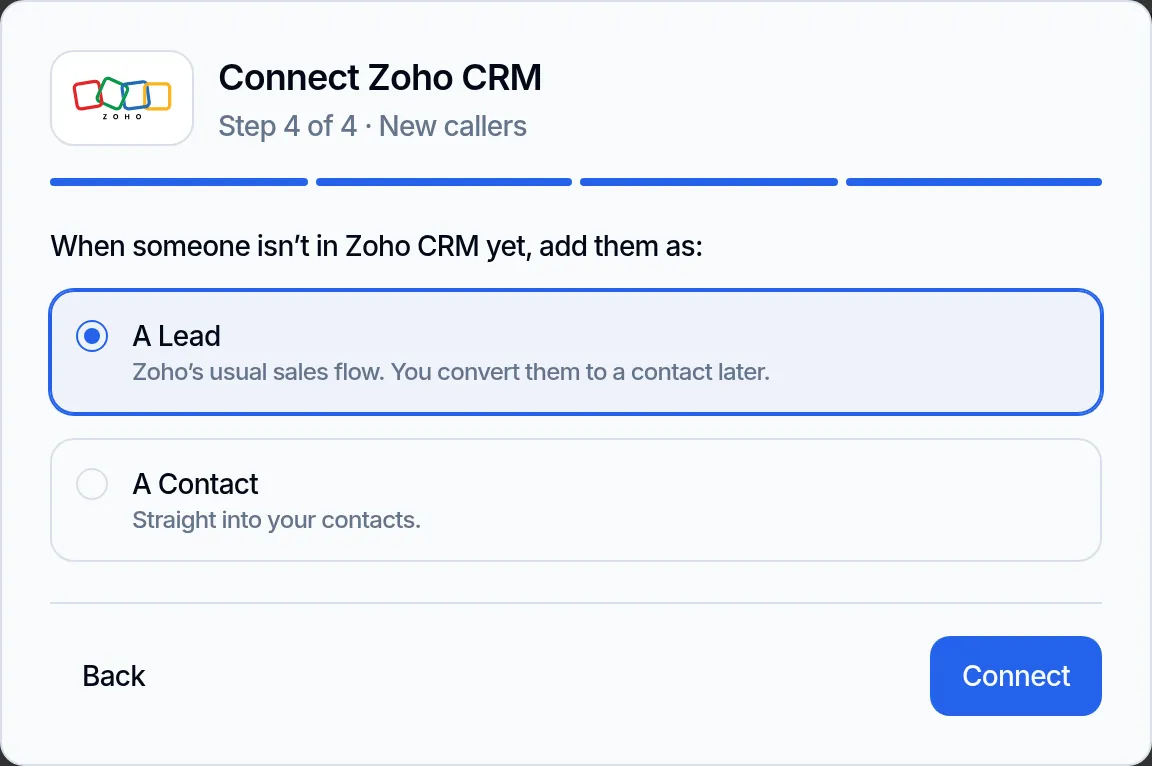
Choose how new callers are added
New people can become leads, or go straight into your contacts. Jodie tests the connection before saving it.
- 07
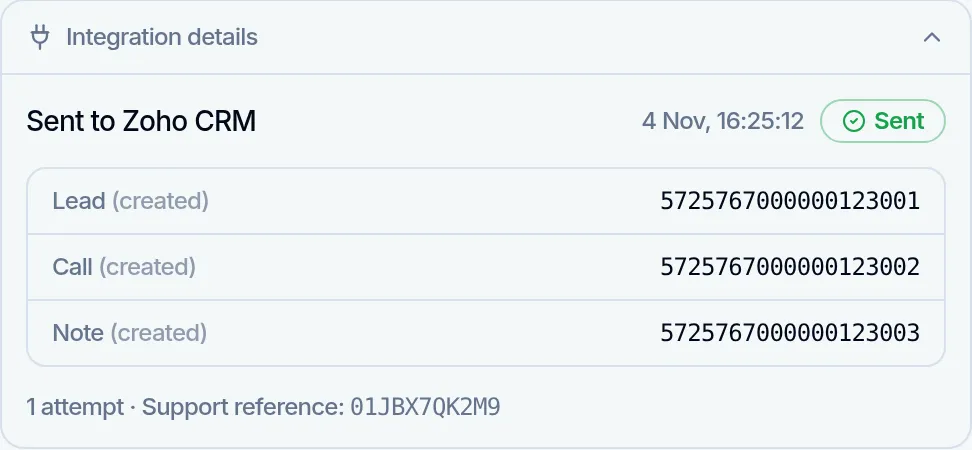
Check what was sent
Each call has an "Integration details" panel. It lists the Zoho records it made, so you can always see what went where.
What data is sent and stored?
Plain answers for whoever looks after data protection. Everything goes over an encrypted link to your own Zoho account.
Sent to your Zoho CRM
- The caller's name, phone number and email, when Jodie has them
- The summary, label and details Jodie collected
- The full transcript, or every message of a chat
- When it happened, which way, and how long it lasted
- A link back to the call or chat in Jodie
- Your business name and your assistant's name
Kept in Jodie
- Your Zoho keys (client ID, client secret and access token), encrypted
- Your Zoho region, and whether new callers become leads or contacts
- A log of every send: which Zoho records changed, the result and a support reference
- You can see that log under "Integration details" on each call. It is also what stops a call being sent twice
Never sent or stored
- Call recordings. They stay in Jodie, one click away
- Test calls, spam and calls from blocked numbers
- Your Zoho password. Jodie never sees it
- Copies of your data in the service that passes it to Zoho. It stores nothing
Why connect Zoho CRM?
Your CRM is only as good as what goes into it. Jodie makes sure every call and chat gets in.
- 01
Every call on file
Calls, WhatsApp, email and web chats all land in Zoho CRM. Nothing is left in a notebook or an unplayed voicemail.
- 02
On the right person
Jodie matches callers by phone and email. History builds up on one record, not ten copies.
- 03
Ready to act on
A summary, the key details and the transcript. Whoever picks it up knows what to do next.
- 04
Nights and weekends covered
Calls you would have missed are waiting in Zoho CRM first thing, already written up.
- 05
Your data, your account
It goes straight to your own Zoho account. Recordings stay in Jodie, and you can disconnect in one click.
- 06
No Zapier, no developer
It is built into Jodie. Setup has a picture of every screen and tests itself before it goes live.
Zoho CRM questions
Is there an AI receptionist that works with Zoho CRM?
Yes. Jodie is an AI receptionist that answers your calls and logs each one in Zoho CRM. She also logs WhatsApp, email and web chats. Each one lands on the right contact or lead, with a summary and the transcript.
Is Jodie a Zoho CRM phone system?
No. Zoho telephony, such as PhoneBridge, links a phone system so your team can make calls from Zoho. Jodie answers calls for you, then logs each one in Zoho CRM.
How does Jodie connect to Zoho CRM?
Directly, with no Zapier. In Jodie, open Integrations and choose Zoho CRM. You make a private link in your Zoho account, called a self client. Then you paste in two values and a one-time code. Jodie tests the link before saving it.
Which Zoho region should I pick?
Pick the one in your address bar when you are signed in to Zoho CRM. Most US accounts are on crm.zoho.com. The setup shows you where to look. Jodie tests the connection before saving, so a wrong pick is caught at once.
Which Jodie plan do I need?
Professional or above, the same plans that include webhooks. You can open the Zoho CRM page in Jodie on any plan to see what it does first.
Does it work with every Zoho CRM edition?
Yes, including the free one. Zoho gives each edition a daily allowance of API credits, 5,000 a day on Free and more on paid editions. Each call Jodie sends uses only a few, so even a busy day stays well inside it.
Will it create duplicate contacts?
No. Jodie first searches your Contacts and Leads by phone number and email. If the caller is there, the call goes on that record. She only adds a new person when there is no match.
Will it change details my team has entered?
No. Jodie only adds calls, tasks and notes to a record. She never overwrites the name, number, email, owner or anything else your team filled in.
Can the same call be sent twice?
No. Jodie keeps a log of every send and claims each call before sending it. If Zoho is down for a moment, she tries again later. She checks the log first, so a retry never logs the call twice.
Are call recordings sent to Zoho?
No. Some Zoho editions refuse files on calls, so recordings stay in Jodie. Each call in Zoho has a link back to Jodie, where the recording is one click away.
Which calls are not sent?
Test calls, calls Jodie marks as spam, and calls from numbers you have blocked. Nobody wants those in their CRM.
What if the connection stops working?
Jodie stops sending and shows Zoho CRM as needing attention on your Integrations page. This can happen if someone deletes the self client. Reconnect in a couple of minutes, then resend anything that failed from the call itself.
How do I disconnect?
Click Disconnect on the Zoho CRM page in Jodie. Your stored keys are deleted at once and nothing more is sent. To remove access in Zoho too, delete the self client in the Zoho API Console.