


Jodie is an AI receptionist that uses ServiceM8 on every call. She finds the caller and their jobs, and tells them when you are due. New work becomes a job card with the time they would like, for your office to book. After the call, she notes it on the job.
- Finds callers and their open jobs
- Raises job cards, never books visits
- Notes every call, with the recording
How does Jodie work with ServiceM8?
Jodie uses ServiceM8 during the call and again after it. Your office stays in charge of the schedule.
- 01
A customer calls
They have a leak, or want to know when you are coming. You are on a job, so Jodie picks up.
- 02
Jodie looks them up
She finds the caller in ServiceM8 with their open jobs and next visit. She checks their name before she relies on it.
- 03
Jodie raises a job card
New work becomes a job card with the address, the work and the time they would like. A change to a job becomes a note on it.
- 04
Your office books it
The job card is waiting in ServiceM8, with the call noted in its diary. Your office picks a time and confirms it.
What does Jodie read and write in ServiceM8?
Jodie reads what a call needs while it is on. She adds job cards, notes and recordings. She never books a visit or changes what your team entered.
Client
Found by phone number or email. A new caller is added as a client, with them as the main contact.
- Name
- Phone number
- Address
- Open jobs
- Next booked visit
Job card
Raised for new work, as a Quote or a Work Order. You choose which.
- Job address
- The time they would like
- What needs doing
- Access notes
- Job contact: name, phone and email
Free times
Read from your opening hours and your staff schedules. Nothing is held.
- Free mornings
- Free afternoons
- Earliest start that fits the job
Note
In the diary of the job, or of the client when there is no job. Added for every call and chat.
- When and who
- Summary
- Details Jodie collected
- Transcript or messages
- Link to the call in Jodie
Attachment
For phone calls, on the same job or client.
- Call recording
Customer, in Jodie
Only if you turn on the client import. Copied from your ServiceM8 clients, then checked for changes every night.
- Name
- Phone numbers
- Emails
What happens on different calls?
Five common cases, and what you find in ServiceM8 after each one.
New work New customer
Someone rings at 7pm because their hot water has stopped working.
Jodie asks for
- Name, phone and email
- The address of the job
- What needs doing, and how urgent it is
- The time they would like, from your free mornings and afternoons
- Access, parking and pets
In ServiceM8
A new client and a job card, as a Quote or Work Order. The time they would like is at the top. The call is noted in its diary, with the recording.
A customer with more work Existing client
A client you know calls about a new job at the same house.
Jodie asks for
- Who they are, found by phone or email
- Their name, to check it is them
- What needs doing and when
In ServiceM8
A job card on their own client, so nobody gets added twice. Their client details are left as they are.
Move or cancel a visit Existing client
A customer cannot be in on Thursday and wants Friday instead.
Jodie asks for
- Which job they mean
- What they want changed
- The time they would like
In ServiceM8
A note in the job diary with the request and the time they would like. Your schedule is not changed until your office confirms.
When are you coming? Existing client
A customer asks what time the electrician is due tomorrow.
Jodie asks for
- Who they are
- Which job they mean
- A message, if there is no visit
In ServiceM8
Jodie tells them the day and time of their next booked visit. The call is noted in the job diary.
A WhatsApp, email or web chat Customer
A customer messages to ask about a quote you sent last week.
Jodie asks for
- Their number or email
- Every message, in order
- A summary
In ServiceM8
A note in the diary of their client, with the summary and every message. New contacts are added as a client.
Ready-made call types in Jodie
- New job request
- Change to a job
- When are you coming?
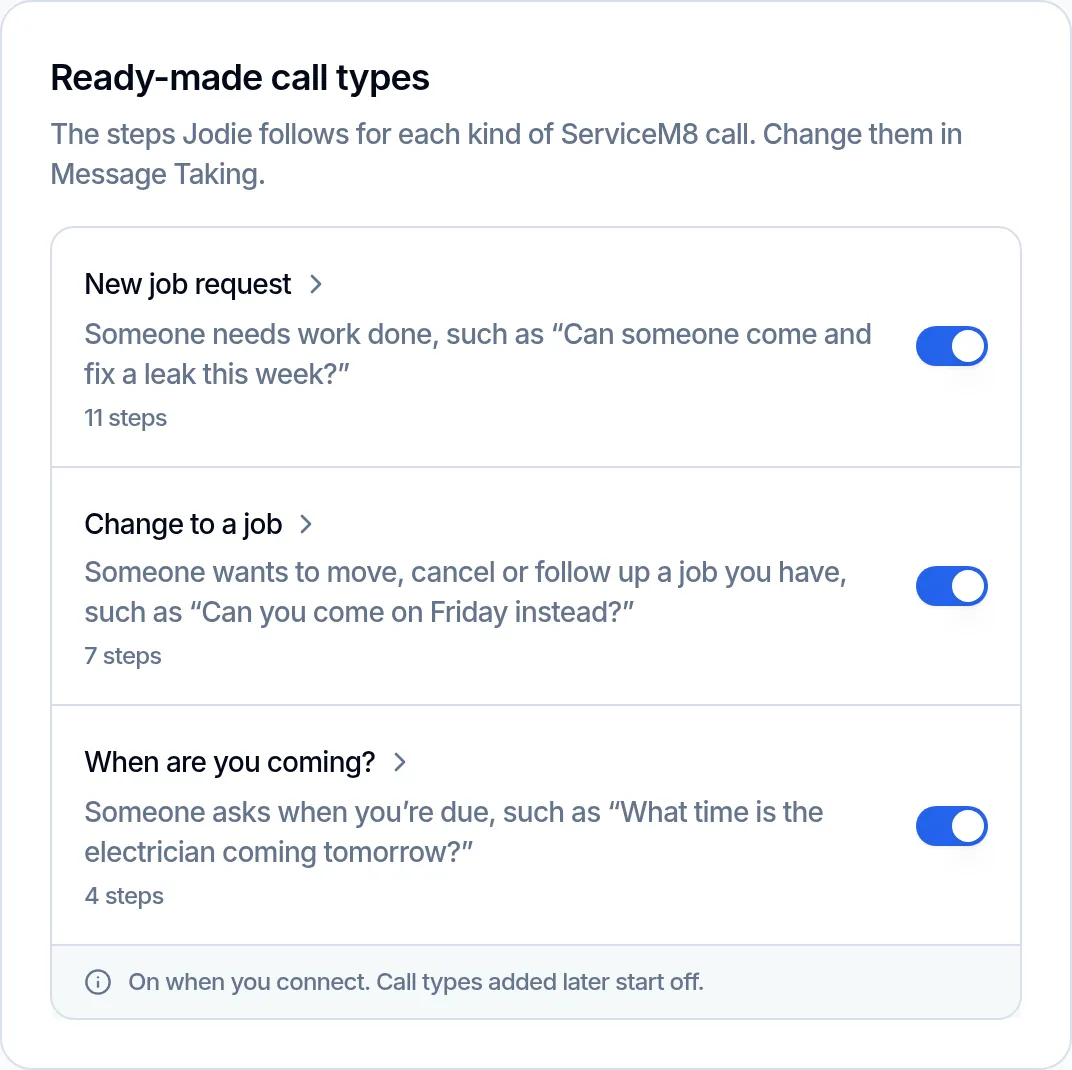
These calls come set up for you. Connecting ServiceM8 adds three ready-made call types to Message Taking in Jodie, switched on. Each one is a list of steps Jodie follows from the top. Steps are questions, look-ups in ServiceM8 and rules. One rule says never to tell a caller a job is booked. You can change, add or reorder steps, or switch a call type off. If you disconnect ServiceM8, they pause and those calls go to General message taking.
How do I set it up?
These are real screens from Jodie. Setup takes about 2 minutes. You need to be a Business Owner in ServiceM8.
- 01
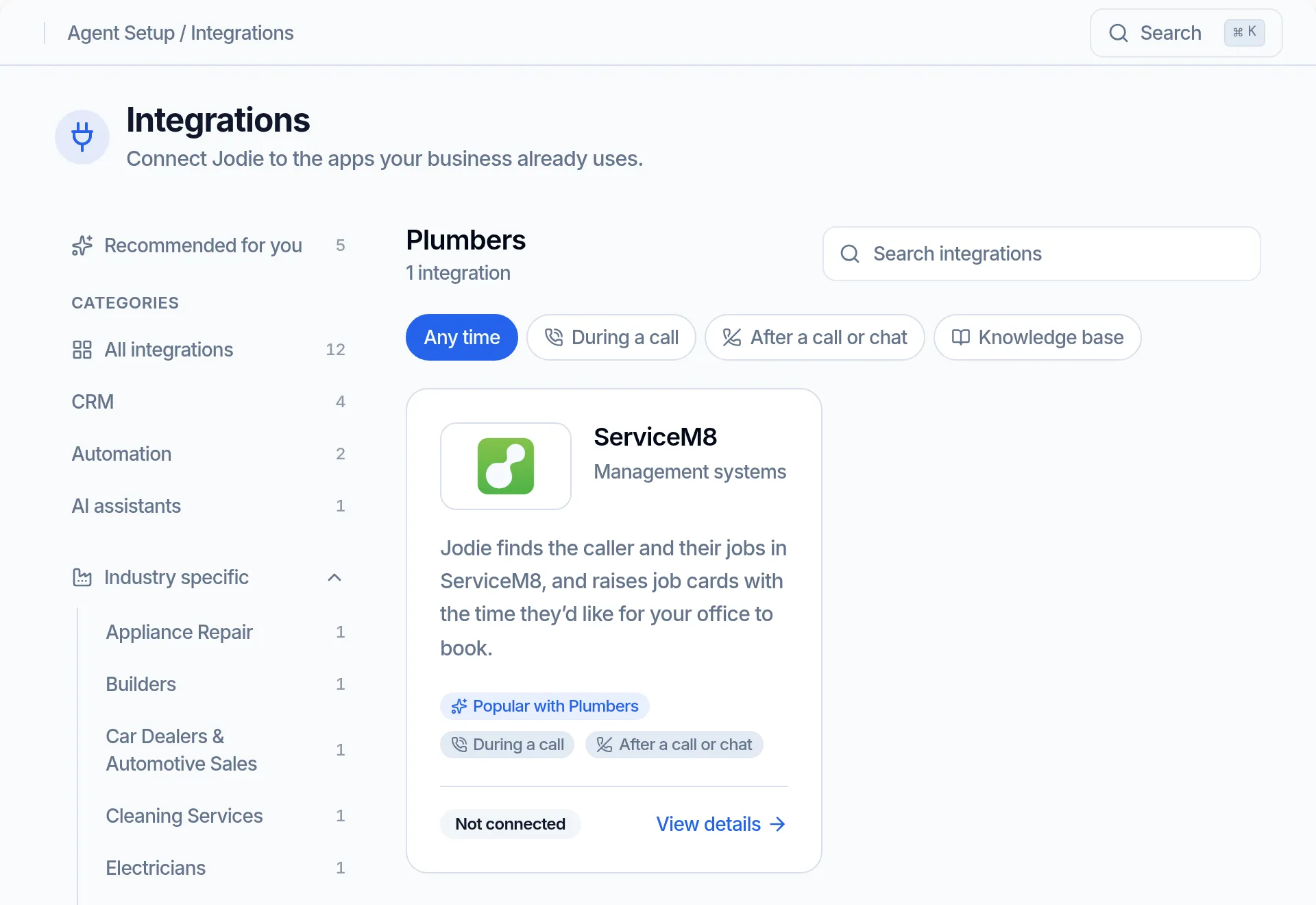
Find ServiceM8 in Integrations
Open Integrations in Jodie. ServiceM8 sits under Management systems, and trades see it first for their kind of business.
- 02
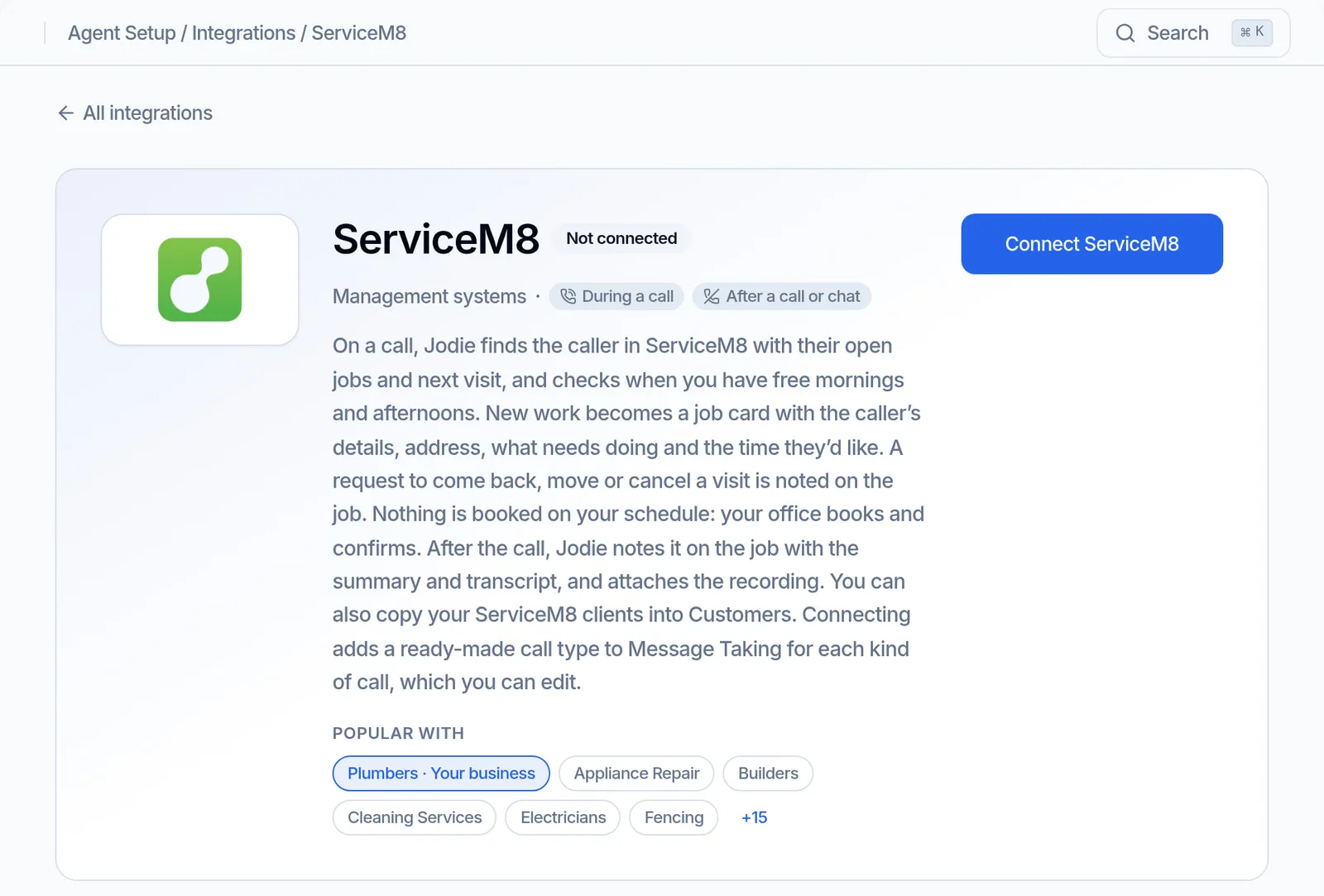
See what it does
The ServiceM8 page shows what Jodie does during a call and after it. Click Connect ServiceM8 to start.
- 03
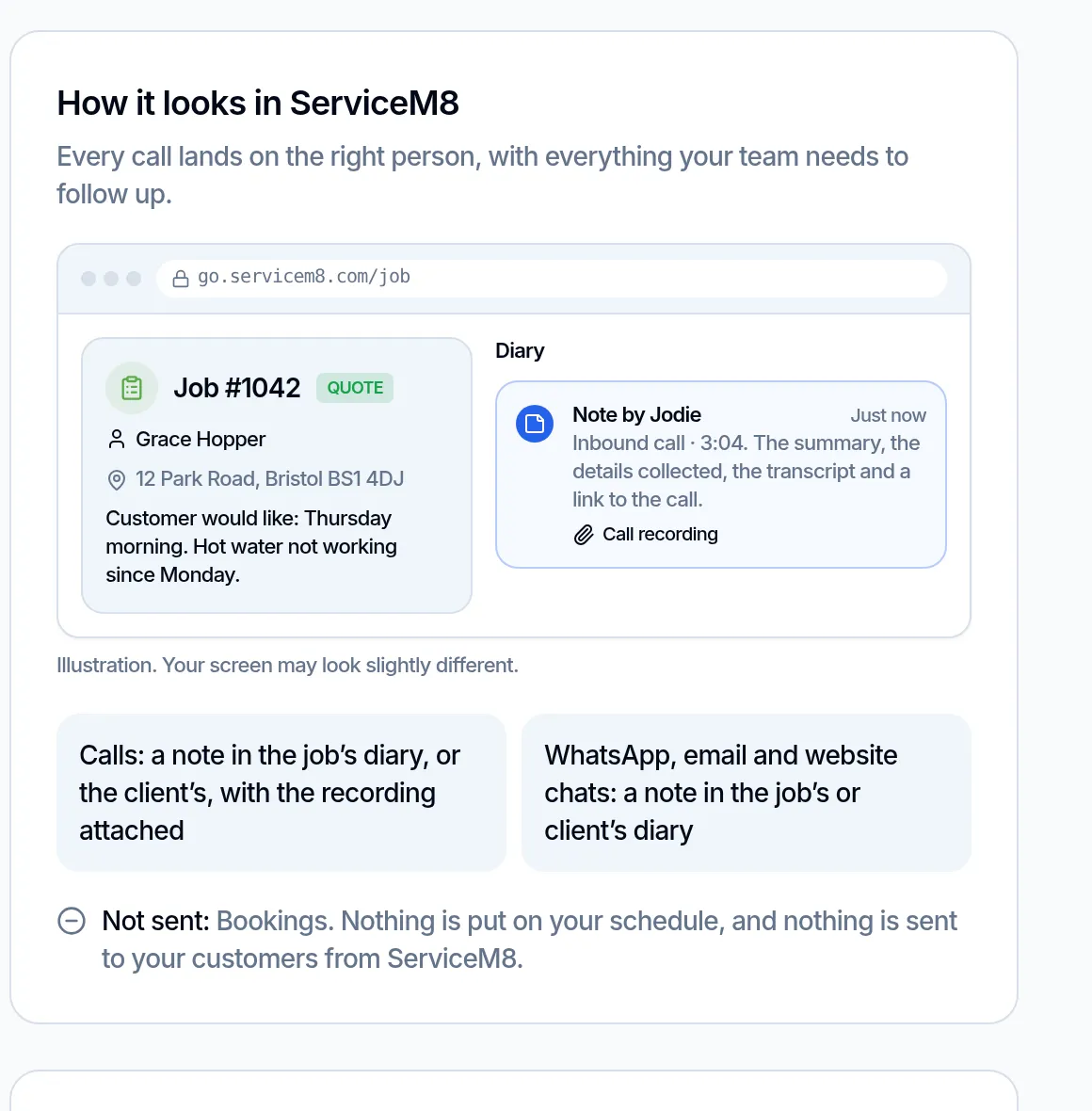
See how it looks in ServiceM8
A picture shows a job card Jodie raised, with the time the caller would like at the top and the call noted in its diary.
- 04
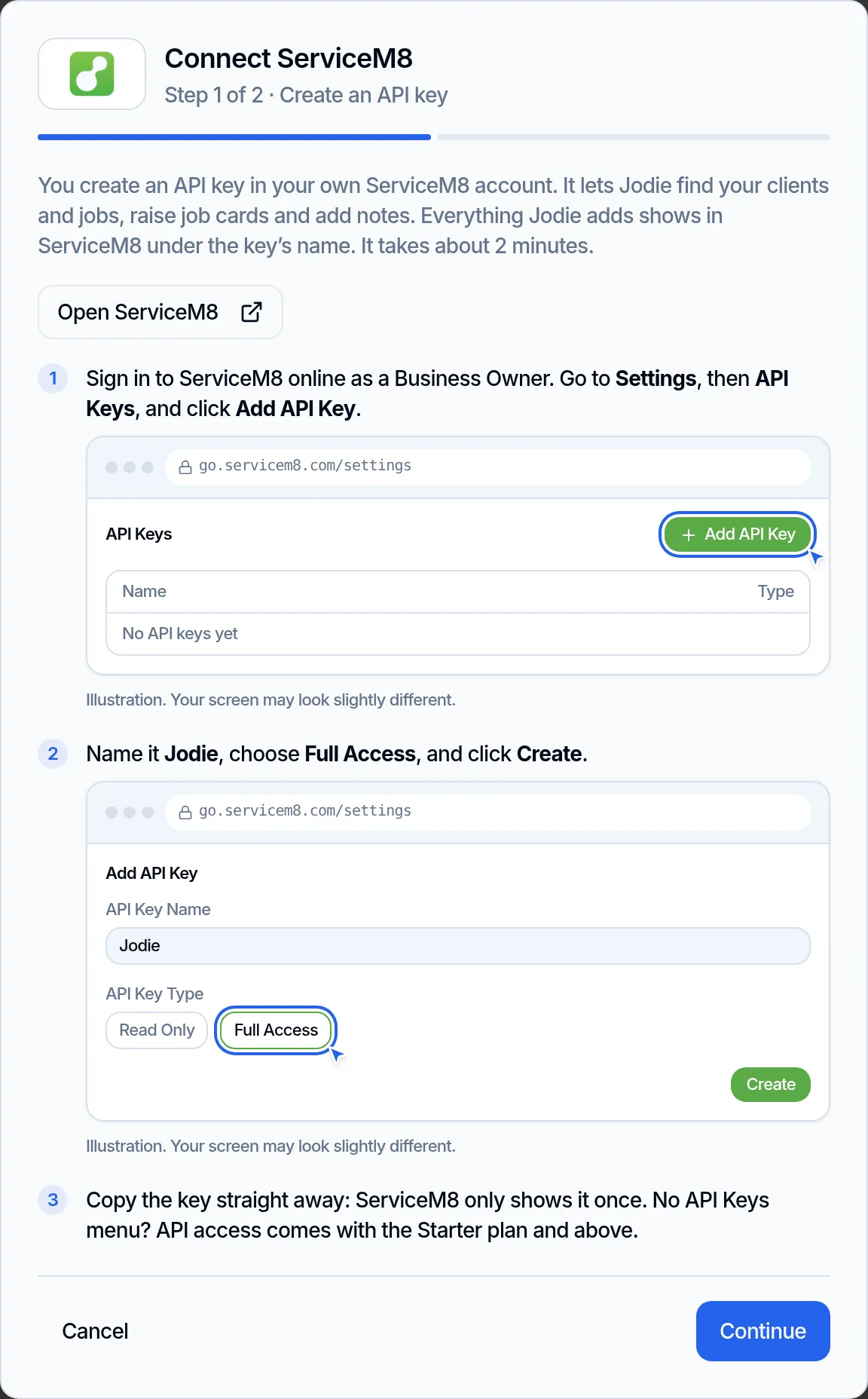
Make an API key in ServiceM8
In ServiceM8, go to Settings, then API Keys, and click Add API Key. Name it after your assistant, choose Full Access and copy the key.
- 05
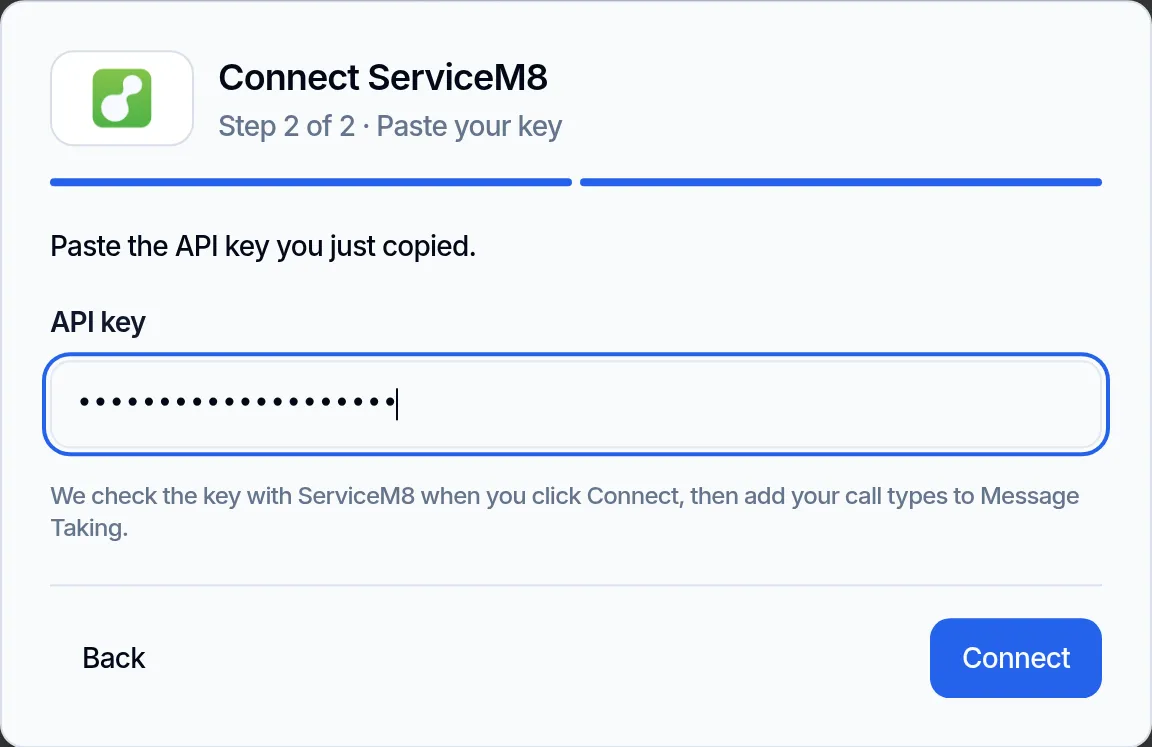
Paste your key
Paste the key and click Connect. Jodie checks it with ServiceM8 before she saves it, then adds your call types.
- 06
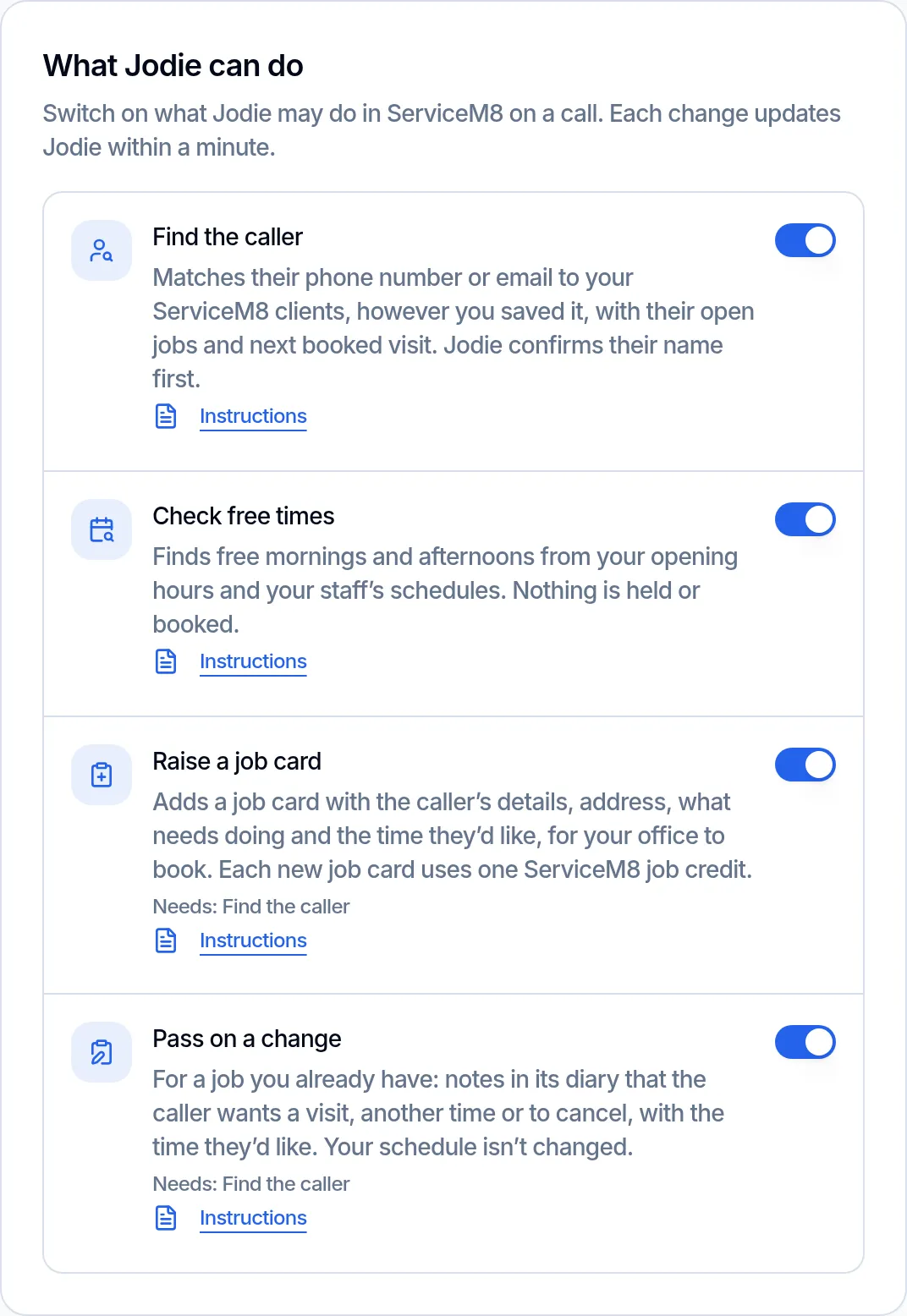
Choose what Jodie can do
Switch each action on or off. All are on to start. Raising a job card and passing on a change need the caller found first.
- 07
Check your call types
Connecting adds three ready-made call types to Message Taking, switched on. Open one to change its steps.
- 08
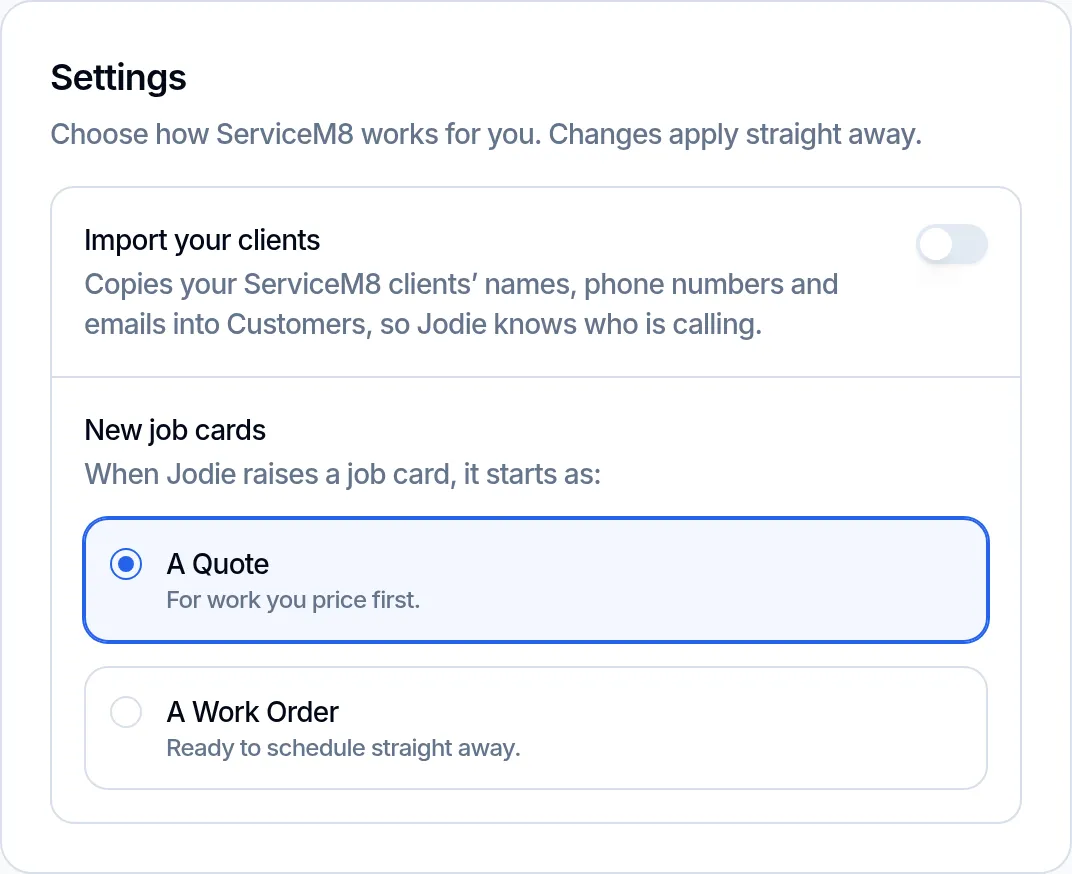
Pick your settings
Choose whether new job cards start as a Quote or a Work Order. Turn on the client import so Jodie knows who is calling.
- 09
Check what was sent
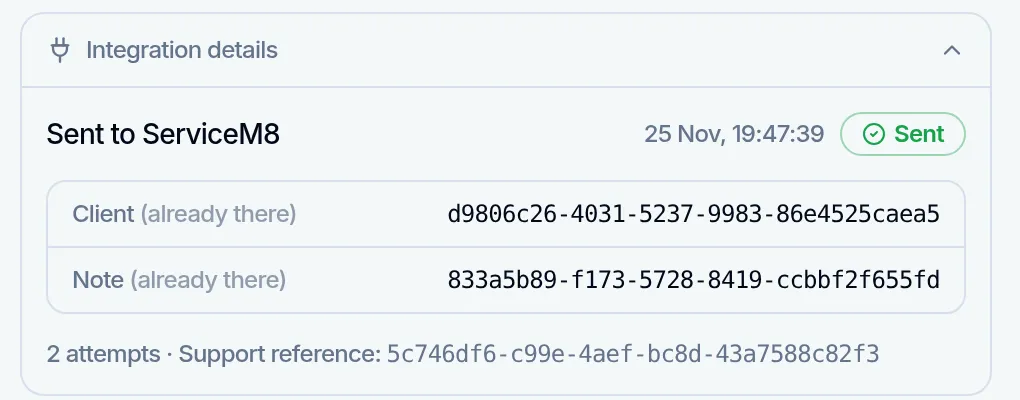
Each call has an "Integration details" panel. It lists the ServiceM8 records it found or added, so you can see what went where.
What data is sent and stored?
Plain answers for whoever looks after data protection. Everything goes over an encrypted link to your own ServiceM8 account.
Sent to your ServiceM8
- The caller's phone number or email, to find them
- A new caller's name, phone, email and address
- The job address, the work, access notes and the time they would like
- A request to come back, move or cancel a visit
- The summary, the details Jodie collected and the transcript, or every message of a chat
- The call recording, and a link back to the call in Jodie
Kept in Jodie
- Your ServiceM8 API key, encrypted
- Whether new job cards start as a Quote or a Work Order, and whether the client import is on
- A log of every send: which ServiceM8 records changed, the result and a support reference
- You can see that log under "Integration details" on each call. It is also what stops a call being sent twice
- With the client import on: the names, phone numbers and emails of your ServiceM8 clients, in Customers. Each one keeps a link to its client until you disconnect
- Your ready-made call types, in Message Taking. They stay, paused, if you disconnect
Never sent or stored
- Bookings. Jodie never puts a visit on your schedule
- Messages to your customers. Nothing is sent to them from ServiceM8
- Changes to your clients or jobs. Jodie only adds job cards, notes and recordings
- Spam, calls from blocked numbers, and calls with no business phone number
- Your ServiceM8 password. Jodie never sees it
- Copies of your data in the service that links Jodie and ServiceM8. It stores nothing
Why connect ServiceM8?
A trade call is usually new work or a question about a job. With ServiceM8 to hand, Jodie can deal with both.
- 01
Job cards, not messages
New work is in ServiceM8 before the caller hangs up, with everything your office needs to book it.
- 02
You keep the schedule
Jodie never books a visit. She takes the time the caller would like, and your office decides who goes.
- 03
On the right client
She finds callers by phone or email, however you saved the number. Jobs land on the client you already have.
- 04
Out of hours covered
Customers ring at night and at weekends. The job cards are waiting in ServiceM8 by morning.
- 05
Every call on file
Each call is noted in the job diary with the summary, the transcript and the recording.
- 06
Set up in 2 minutes
Make an API key in ServiceM8, paste it into Jodie and click Connect.
Best AI receptionist for tradies on ServiceM8
The best AI receptionist for tradies on ServiceM8 turns a call into a job card, not a scribbled message. A message service takes a name and number. Your office still has to call back and type it all in.
Jodie answers while you are on the tools. She finds the caller in ServiceM8, takes the address, the work and the time they would like, and raises a job card. Your office books it from there.
-
Nothing booked by mistake
Jodie never puts a visit on your schedule. She says the office will confirm the time, so you decide who goes.
-
Fewer "when are you coming?" calls
She tells a customer the day and time of their next booked visit, straight from ServiceM8.
-
Set up in about 2 minutes
Make an API key in ServiceM8 and paste it into Jodie. She checks it before she saves it.
ServiceM8 Phone Agent and Jodie: what is the difference?
ServiceM8 Phone Agent is ServiceM8's own AI that answers calls. It is an add-on for ServiceM8 Phone, the phone service ServiceM8 sells.
Jodie is an AI receptionist that works on the number you already have. You forward calls to her, from any phone system. She also answers WhatsApp, email and the chat on your website.
On a call, Jodie uses ServiceM8 the way your office does. She finds the caller and their jobs, and raises a job card for new work. Your office still books every visit.
ServiceM8 integration: how Jodie uses the API
Jodie connects to ServiceM8 with an API key from your own account. You make it under Settings, then API Keys. No developer is needed, and there is no Zapier in between.
The key lets Jodie find your clients and jobs, raise job cards, add notes and attach recordings. She never books visits, sends messages to your customers or changes a client you already have.
-
Who can make the key
A Business Owner in ServiceM8, on the Starter plan or above. ServiceM8 shows the key only once, so copy it straight away.
-
What you see in ServiceM8
Everything Jodie adds shows under the name of the key. Each call in Jodie lists the ServiceM8 records it touched.
ServiceM8 questions
Is there an AI receptionist that works with ServiceM8?
Yes. Jodie is an AI receptionist that uses ServiceM8 on every call. She finds the caller and their jobs, and raises job cards for new work. After the call, she notes it on the job with the recording.
Is Jodie the same as ServiceM8 Phone Agent?
No. ServiceM8 Phone Agent is ServiceM8's own AI, an add-on for ServiceM8 Phone. Jodie is an AI receptionist that works on the number you already have. She also answers WhatsApp, email and web chat.
Can Jodie book jobs into my ServiceM8 schedule?
No, on purpose. Jodie raises a job card with the time the caller would like, and tells them the office will confirm. Your office books the visit, so you always decide who goes and when.
Does Jodie offer real free times?
Yes. She checks your opening hours and your staff schedules for free mornings and afternoons. She offers a couple to the caller. Nothing is held, so your office can still pick another time.
Does each job card use a job credit?
Yes. ServiceM8 counts each new job against your job credits. A call about a job you already have adds a note to it instead, which uses none.
Can a customer move or cancel a visit?
They can ask, and Jodie passes it on. She adds a note to the job with what they want and when. Your schedule is not changed until your office confirms.
Will Jodie add duplicate clients?
No. She looks for the caller by phone number, in any format, and by email first. If they are there, the job goes on their client. She only adds a client when there is no match.
Does the call recording go to ServiceM8?
Yes. Jodie attaches the recording to the job, or to the client when there is no job. The note next to it has the summary, the transcript and a link to the call in Jodie.
How do I connect ServiceM8?
Sign in to ServiceM8 as a Business Owner. Go to Settings, then API Keys, and add a key with Full Access. Paste it on the ServiceM8 page in Jodie. API keys come with the Starter plan and above.
Can Jodie import my ServiceM8 clients?
Yes. Turn on "Import your clients" in Settings on the ServiceM8 page in Jodie. She copies their names, phone numbers and emails into Customers, and nothing else. After the first import, she checks for changes every night.
Which Jodie plan do I need?
Professional or above. You can open the ServiceM8 page in Jodie on any plan to see what it does first.
How do I disconnect?
Click Disconnect on the ServiceM8 page in Jodie. Your key is deleted at once and nothing more is sent. To cut access in ServiceM8 too, delete the key under Settings, then API Keys.